Test page
Sep 15, 2024
Revised Feb 15, 2026
This is just a test page so I can check if anything breaks when I update the code / CSS. Mainly based on the djot syntax reference.
Djot Syntax - Inline
Syntax that can be included within a block.
Text styling
- Emphasized inline content is delimited by _ characters. Strong emphasis is delimited by * characters.
- Verbatim content begins with a string of consecutive backtick characters (`) and ends with an equal-lengthed string of consecutive backtick characters. Material between the backticks is treated as verbatim text (backslash escapes don’t work there).
- Inline content between {= and =} will be treated as highlighted text (in HTML, <mark>). Note that the { and } are mandatory.
- Superscript is delimited by ^ characters, subscript by ~.
- To mark inline text as inserted, use {+ and +}. To mark it as deleted, use {- and -}. The { and } are mandatory.
strong text
emphasized text
verbatim text
highlighted text
superscript text
subscript text
deleted text
inserted text
Links
There are two kinds of links, inline links and reference links. Both kinds start with the link text (which may contain arbitrary inline formatting) inside [ … ] delimiters.
- A URL or email address that is enclosed in <…> will be hyperlinked. The content between pointy braces is treated literally (backslash-escapes may not be used).
- Inline links then contain the link destination (URL) in parentheses. There should be no space between the ] at the end of the link text and the open ( defining the link destination.
- Reference links use a reference label in square brackets, instead of a destination in parentheses. This must come immediately after the link text. If the label is empty, then the link text will be taken to be the reference label as well as the link text.
- A footnote reference is ^ + the reference label in square brackets.
Autolinks look like this: www.example.com
Inline links look like this: link
Reference links look like this: link
Reference links can also look like this: link
Footnote references look like: 1
Images
Images work just like links, but have a ! prefixed. As with links, both inline and reference variants are possible.
Inline images look like: 
Reference images look like:
Math
To include LaTeX math, put the math in a verbatim span and prefix it with $ (for inline math) or $$ (for display math):
Einstein derived . Pythagoras proved
Line Breaks
Line breaks in inline content are treated as “soft” breaks; they may be rendered as spaces, or (in contexts where newlines are treated semantically like spaces, such as HTML) as newlines.
To get a hard line break (of the sort represented by HTML’s <br>), use backslash + newline:
This is a soft break and this is a hard
break.
This is after a hard break.
Symbols
Surrounding a word with : signs creates a “symbol,” which by default is converted to emojis.
My reaction is 👍 😃.
Attributes and Span
Attributes are put inside curly braces and must immediately follow the inline element to which they are attached (with no intervening whitespace). Attribute specifiers may contain line breaks. Attribute specifiers may be “stacked,” in which case they will be combined.
Inside the curly braces, the following syntax is possible:
.foospecifies foo as a class. Multiple classes may be given in this way; they will be combined.#foospecifies foo as an identifier. An element may have only one identifier; if multiple identifiers are given, the last one is used.key="value"or key=value specifies a key-value attribute. Quotes are not needed when the value consists entirely of ASCII alphanumeric characters or _ or : or -. Backslash escapes may be used inside quoted values.%begins a comment, which ends with the next%or the end of the attribute (}).- Text in square brackets that is not a link or image and is followed immediately by an attribute is treated as a generic span.
An attribute on
Comments won’t show up in the final text.
It can be helpful to read the manual.
Djot Syntax - Block
Blocks contain inline content. Indentation is only significant for list item or footnote nesting. Block-level items should be separated from one another by blank lines. There are some cases in which two block-level elements can be adjacent—e.g., a thematic break or fenced code block can be directly followed by a paragraph.
Paragraph
A paragraph is a sequence of nonblank lines that does not meet the condition for being one of the other block-level elements. A paragraph ends with a blank line or the end of the document.
Heading
A heading starts with a sequence of one or more # characters, followed by whitespace. The number of # characters defines the heading level. The following text is parsed as inline content. The heading text may spill over onto following lines, which may optionally be preceded by the same number of # characters.
Identifiers are added automatically to any headings that do not have explicit identifiers attached to them. The identifier is formed by taking the textual content of the heading, removing punctuation (other than _ and -), replacing spaces with -, and if necessary for uniqueness, adding a numerical suffix. However, for the most part you do not need to know the identifiers that are assigned to headings, because implicit link references are created for all headings.
Block quote
A block quote is a sequence of lines, each of which begins with >, followed either by a space or by the end of the line. The contents of the block quote (minus initial >) are parsed as block-level content. It’s possible to “lazily” omit the > prefixes from regular paragraph lines inside the block quote, except in front of the first line of a paragraph.
This is a block quote.
- with a
- list in it.
This is a block quote.
Lists
A list is simply a sequence of list items of the same type. Changing ordered list style or bullet will stop one list and start a new one. A list is classed as tight if it does not contain blank lines between items, or between blocks inside an item, otherwise it’s loose. The start number of an ordered list will be determined by the number of its first item. The numbers of subsequent items are irrelevant.
A list item consists of a list marker followed by a space (or a newline) followed by one or more lines, indented relative to the list marker. Indentation may be “lazily” omitted on paragraph lines following the first line of a paragraph.
This is a list item.
containing a block quote
loose list indented
loose list indented
The next tight item
The next tight item
- The next tight item (style change)
- ☐ Task item 1
- ☒
Task item 2- ☐ Indented task item 1
- ☒
Indented task item 2
- ☐ Task item 3
- Hip
-
an angled obstacle skateboarders use to perform tricks
to be cool
The following basic types of list markers are available:
Marker |
List type |
|---|---|
- |
bullet |
+ |
bullet |
* |
bullet |
1. |
ordered, decimal-enumerated, followed by period |
1) |
ordered, decimal-enumerated, followed by parenthesis |
(1) |
ordered, decimal-enumerated, enclosed in parentheses |
a. |
ordered, lower-alpha-enumerated, followed by period |
a) |
ordered, lower-alpha-enumerated, followed by parenthesis |
(a) |
ordered, lower-alpha-enumerated, enclosed in parentheses |
A. |
ordered, upper-alpha-enumerated, followed by period |
A) |
ordered, upper-alpha-enumerated, followed by parenthesis |
(A) |
ordered, upper-alpha-enumerated, enclosed in parentheses |
i. |
ordered, lower-roman-enumerated, followed by period |
i) |
ordered, lower-roman-enumerated, followed by parenthesis |
(i) |
ordered, lower-roman-enumerated, enclosed in parentheses |
I. |
ordered, upper-roman-enumerated, followed by period |
I) |
ordered, upper-roman-enumerated, followed by parenthesis |
(I) |
ordered, upper-roman-enumerated, enclosed in parentheses |
: |
definition |
- [ ] |
task unchecked |
- [x] |
task checked (lower) |
- [X] |
task checked (upper) |
Code block
A code block starts with a line of three or more consecutive backticks, optionally followed by a language specifier, but nothing else. (The language specifier may optionally be preceded and/or followed by whitespace.) The code block ends with a line of backticks equal or greater in length to the opening backtick “fence,” or the end of the document or enclosing block, if no such line is encountered. Its contents are interpreted as verbatim text. If the contents contain a line of backticks, be sure to select a longer string of backticks to use as the “fence”:
Thematic Break
A line containing three or more * or - characters, and nothing else (except spaces or tabs) is treated is a thematic break (<hr> in HTML). Unlike in Markdown, a thematic break may be indented:
Then they went to sleep.
When they woke up, …
Raw Block
A code block with =FORMAT where the language specification would normally go is interpreted as raw content in FORMAT and will be passed through verbatim to output in that format. For example:
emphasized text
strong emphasis
Div
A div begins with a line of three or more consecutive colons, optionally followed by white space and a class name (but nothing else). It ends with a line of consecutive colons at least as long as the opening fence, or with the end of the document or containing block.
Here is a paragraph.
And here is another.
Pipe table
A pipe table consists of a sequence of rows. Each row starts and ends with a pipe character (|) and contains one or more cells separated by pipe characters. A separator line is a row in which every cell consists of a sequence of one of more - characters, optionally prefixed and/or suffixed by a : character.
When a separator line is encountered, the previous row is treated as a header, and alignments on that row and any subsequent rows are determined by the separator line (until a new header is found). The separator line itself does not contribute a row to the parsed table.
fruit |
price |
|---|---|
apple |
4 |
banana |
10 |
Column alignments are determined by the separator line in the following way:
- if the line of - begins with a : and does not end with one, the column is left-aligned
- if it ends with : and does not begin with one, the column is right-aligned
- if it both begins and ends with :, the column is center-aligned
- if it neither begins nor ends with :, the column is default-aligned
In the below example the row with a and b is a header, with the left column default-aligned and the right column center-aligned. The next real row, containing 1 and 2, is also a header, in which the left column is left-aligned and the right column is right-aligned. This alignment is also applied to the row that follows, containing 3 and 4.
A table need not have a header: just omit any separator lines, or (if you need to specify column alignments) begin with a separator line
Contents of table cells are parsed as inlines. Block-level content is not possible in pipe table cells.
Djot is smart enough to recognize backslash-escaped pipes and pipes in verbatim spans; these do not count as cell separators:
You can attach a caption to a table. The caption can come directly after the table, or there can be an intervening blank line.
a |
b |
|---|---|
1 |
2 |
3 |
4 |
a |
b |
|---|---|
x |
2 |
just two | |
cells in this table |
Block attributes
To attach attributes to a block-level element, put the attributes on the line immediately before the block. Block attributes have the same syntax as inline attributes, but if they don’t fit on one line, subsequent lines must be indented. Repeated attribute specifiers can be used, and the attributes will accumulate.
Don’t forget to turn off the water!
Sing, muse, of the wrath of Achilles
Custom Syntax
The syntax in this section are custom extensions for djot, only supported on this site.
Center Div
Center the div content horizontally and vertically
A paragraph
Side-by-Side Div
Display the contents horizontally. It may contain more than two children.
This paragraph is on the left.
This paragraph is on the right.
Example Div
Used to make this page. It’s basically the side-by-side div with some styling.
Special Div
These are based on GitHub alerts. They allow for some informational content to be more prominent on the page.
Highlights information that users should take into account, even when skimming.
Optional information to help a user be more successful.
Crucial information necessary for users to succeed.
Critical content demanding immediate user attention due to potential risks.
Negative potential consequences of an action.
Content stacks vertically.
Crazy? I was crazy once. They locked me in a room. A rubber room filled with rats. And rats make me crazy. Crazy? I was crazy once. They locked me in a room. A rubber room filled with rats. And rats make me crazy…
Tabs Div
Each element is grouped into a set of tabs, with only the active tabs
content on display. Normally the first tab is active when a page is
loaded, unless the {.active} attribute is present above a
tabs name. The first title level found is considered the base title.
Anything equal to it or above is considered another tab.
Sentences.
Other sentences.
Captions
Captions can now be attached to anything. This is mainly useful for pictures.
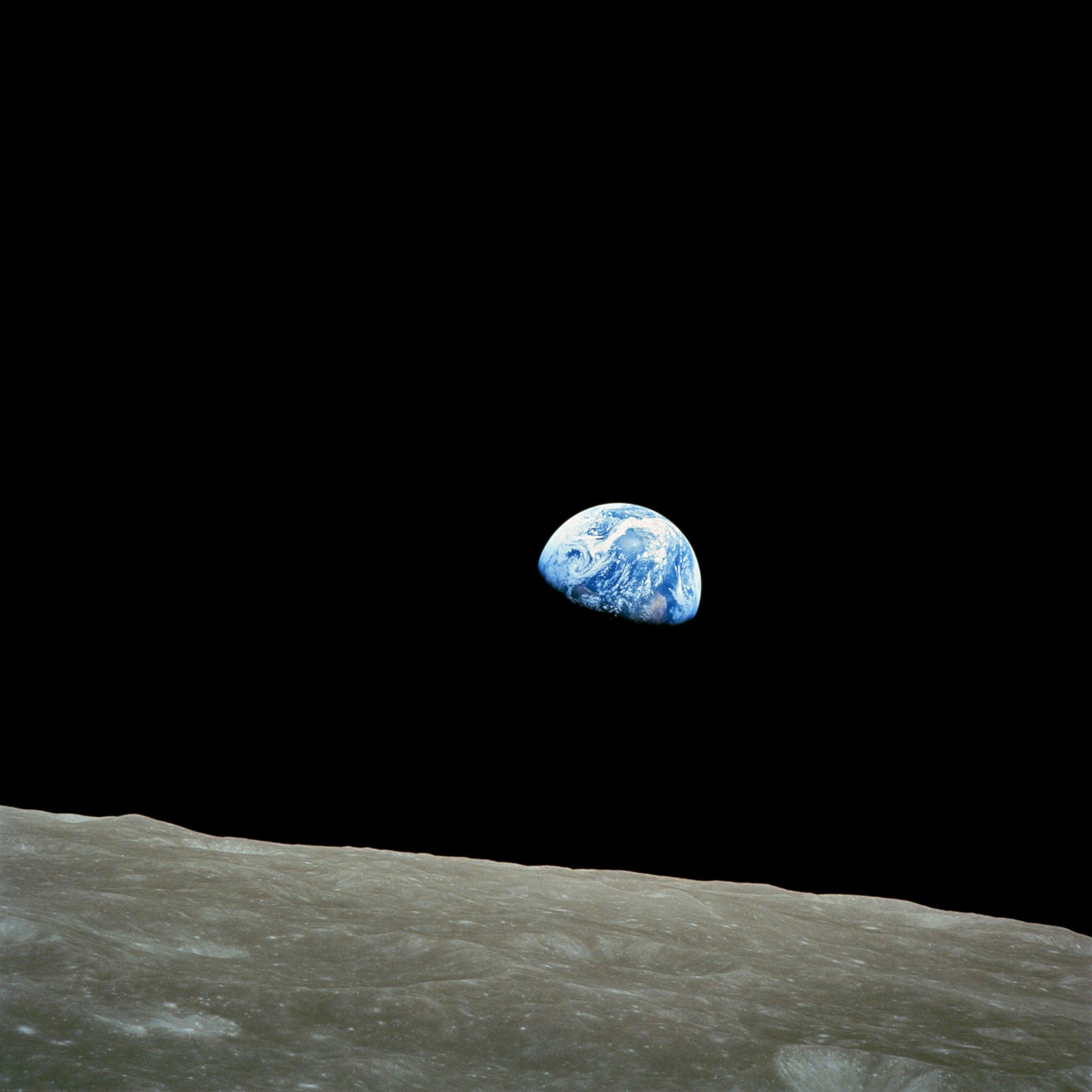
Figure 1: A demo image
Enhanced Code Blocks
Along with syntax highlighting, you can also display line numbers (arbitrary offset), a title, and highlight lines for emphasis.
Attributes:
title: Defaults to</> language.lineno: The starting line number. Starts at one by default. Set to zero to not display them.hl_lines: comma separated list of lines to highlight (first line is one).
Scripting Raw Blocks
For the javascript block it simply wraps the code in script tags (specifying javascript). For pyscript, it’ll handle importing the pyscript core (only once).
Index List
A special styling where the list uses lines instead of dots for list items.
Mermaid
Mermaid diagrams can be used in code blocks, similar to other programs.
---
config:
  theme: dark
---
  graph TD
  A[Client] --> B[Load Balancer]
  B --> C[Server01]
  B --> D[Server02]
TOC Macro
Macros allow for generated text to be inserted. They follow the
syntax :{#name argument=value ... argument=value}. This
macro will be expanded into a collapsible table of contents for the
page.
Table of contents
- 1 Test page
- 2
Djot Syntax - Inline
- 2.1 Text styling
- 2.2 Links
- 2.3 Images
- 2.4 Math
- 2.5 Line Breaks
- 2.6 Symbols
- 2.7 Attributes and Span
- 3
Djot Syntax - Block
- 3.1 Paragraph
- 3.2
Heading
- 3.2.1.1 A level four heading!
- 3.2.1.2 A heading that takes up three lines
- 3.3 Block quote
- 3.4 Lists
- 3.5 Code block
- 3.6 Thematic Break
- 3.7 Raw Block
- 3.8 Div
- 3.9 Pipe table
- 3.10 Block attributes
- 4
Custom Syntax
- 4.1 Center Div
- 4.2 Side-by-Side Div
- 4.3 Example Div
- 4.4 Special Div
- 4.5 Tabs Div
- 4.6 Captions
- 4.7 Enhanced Code Blocks
- 4.8 Scripting Raw Blocks
- 4.9 Index List
- 4.10 Mermaid
- 4.11 TOC Macro
- 4.12 Include Macro
- 4.13 Metadata Macro
- 4.14 Post List Macro
Include Macro
Includes an entire file in another. This happens during file processing. When an include macro is encountered, it’ll read the file in the path and parse it from text. The result is placed directly into the processed tree where the macro was.
This text came from another file
Metadata Macro
Similar to frontmatter, but it isn’t parsed separate from the document. This macro defines some document properties. It can appear anywhere (duplicates overwrite each other).
Attributes:
title: The tab title. Defaults to the first title block.file-type: Used to identifyhtmlorxsltfiles. Defaults tohtml. This is mainly used for the RSS feed style.banner: The image to use at the top. Defaults to no image being displayed.
Post List Macro
Expands to a list (sorted by date and series) of all posts on the site.
Date
2026
Mar 01Improving HDD Cooling
2025
May 31Home Server Hardware
2024
Nov 18ZFS Calculators
Sep 15Posts
Series
And here is the footnote with two paragraphs.
Second paragraph must be indented, at least in the first line.↩︎